







Sep 18 2006

File uploading - howto part 3

Posted by admin under In practice

We will now continue to work on your "customer" editing application  we started in Part 1 - so please read it and Part 2 as well.

For each customer we should be associate manage binary files - lets say pdf files and image files. So now lets add some upload functionality to our script.

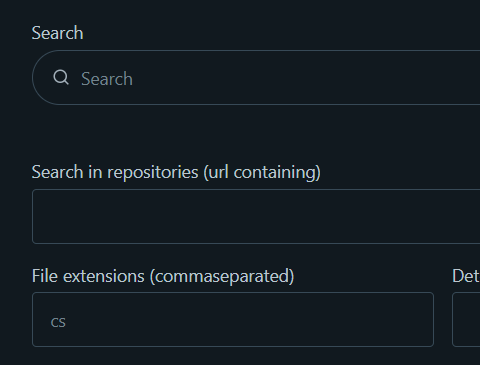
As usual it's hard to describe in words so lets look at what we want in the end:

Here we are editing an existing customer. It has already been associated with two uploaded documents (one Word document and one jpg file). We should be able to tick the delete checkbox (but that will be added in a future article) - now lets focus on upload.


   <hr />
   Upload files:<br />
        <asp:FileUpload ID="FileUpload1" runat="server" /><br />
        <asp:FileUpload ID="FileUpload2" runat="server" /><br />
        <asp:FileUpload ID="FileUpload3" runat="server" />
   <hr />
        <asp:Button ID="btnUpdate" runat="server" Text="Save" OnClick="btnUpdate_Click" />
        

Simple enough - all we have added is three FileUpload controls. Now lets make twist on this. I always recommend NOT storing binary data in SQL database but on the other side - a lot of people has contacted me wondering how to do it, so why not do it in this example.

Here's our database table.


CREATE TABLE [dbo].[cust_file] (
	[id] [int] IDENTITY (1, 1) NOT NULL ,
	[customer_id] [int] NULL ,
	[filename] [varchar] (255) NULL ,
	[filedata] [image] NULL ,
	[contenttype] [varchar] (255) NULL ,
	[length] [int] NULL 
) ON [PRIMARY] TEXTIMAGE_ON [PRIMARY]
GO

ALTER TABLE [dbo].[cust_file] WITH NOCHECK ADD 
	CONSTRAINT [PK_cust_file] PRIMARY KEY  CLUSTERED 
	(
		[id]
	)  ON [PRIMARY] 
GO


It will give us something like this for each file:

 So lets dive into the code and see what happens in Save (just showing modifications from the Part2 code):


            int nId = Convert.ToInt32( Microsoft.ApplicationBlocks.Data.SqlHelper.ExecuteScalar(ConfigurationManager.ConnectionStrings["MainConn"].ToString(),
                CommandType.StoredProcedure, "cust_SaveCustomer", paramsToSP));

            //Now we have the new id
            //Use it as foreign ket when storing files...
            CheckAndSaveUpload(nId, FileUpload1);
            CheckAndSaveUpload(nId, FileUpload2);
            CheckAndSaveUpload(nId, FileUpload3);


We retrieve the customer id - and we will then use that as foreigh key in the cust_file table. Foreach and every FileUpload control (1,2,3) we call CheckAndSaveUpload


    protected void CheckAndSaveUpload(int nCustId, FileUpload oUpload)
    {
        if (oUpload.PostedFile != null && oUpload.PostedFile.ContentLength > 0)
        {
            byte []bData = new byte[oUpload.PostedFile.ContentLength];
            oUpload.PostedFile.InputStream.Read(bData, 0, oUpload.PostedFile.ContentLength);

            //Retrieve filename
            System.IO.FileInfo oInfo = new System.IO.FileInfo(oUpload.PostedFile.FileName);

            SqlParameter[] paramsToSP = new SqlParameter[5];
            paramsToSP[0] = new SqlParameter("@customer_id", SqlDbType.Int);
            paramsToSP[0].Value = nCustId;
            paramsToSP[1] = new SqlParameter("@filedata", SqlDbType.Image);
            paramsToSP[1].Value = bData;
            paramsToSP[2] = new SqlParameter("@filename", SqlDbType.VarChar,255);
            paramsToSP[2].Value = oInfo.Name;
            paramsToSP[3] = new SqlParameter("@contenttype", SqlDbType.VarChar,255);
            paramsToSP[3].Value = oUpload.PostedFile.ContentType;
            paramsToSP[4] = new SqlParameter("@length", SqlDbType.Int);
            paramsToSP[4].Value = oUpload.PostedFile.ContentLength;
            
            Microsoft.ApplicationBlocks.Data.SqlHelper.ExecuteNonQuery(ConfigurationManager.ConnectionStrings["MainConn"].ToString(),
                CommandType.StoredProcedure, "cust_SaveFile", paramsToSP);
        }
    }

Here we have some pretty interesting code. First check if the user has selected a file for this particular control (oUpload.PostedFile != null etc). Next we create a byte array and use the oUpload.PostedFile.InputStream to fill that array. Filename, contenttype and contentlength are taken directly from the upload control as well, and we call our stored procedure cust_SaveFile


CREATE proc cust_SaveFile(@customer_id int, @filedata image, @filename varchar(255), @contenttype varchar(255), @length int)
as
insert cust_file (customer_id, filedata, [filename], contenttype, length) select  @customer_id, @filedata, @filename, @contenttype, @length

 In the attached download file (demoupload.zip) you will find (besides all sourcecode) all scripts for creating the database tables and stored procedures


Attachments

Links